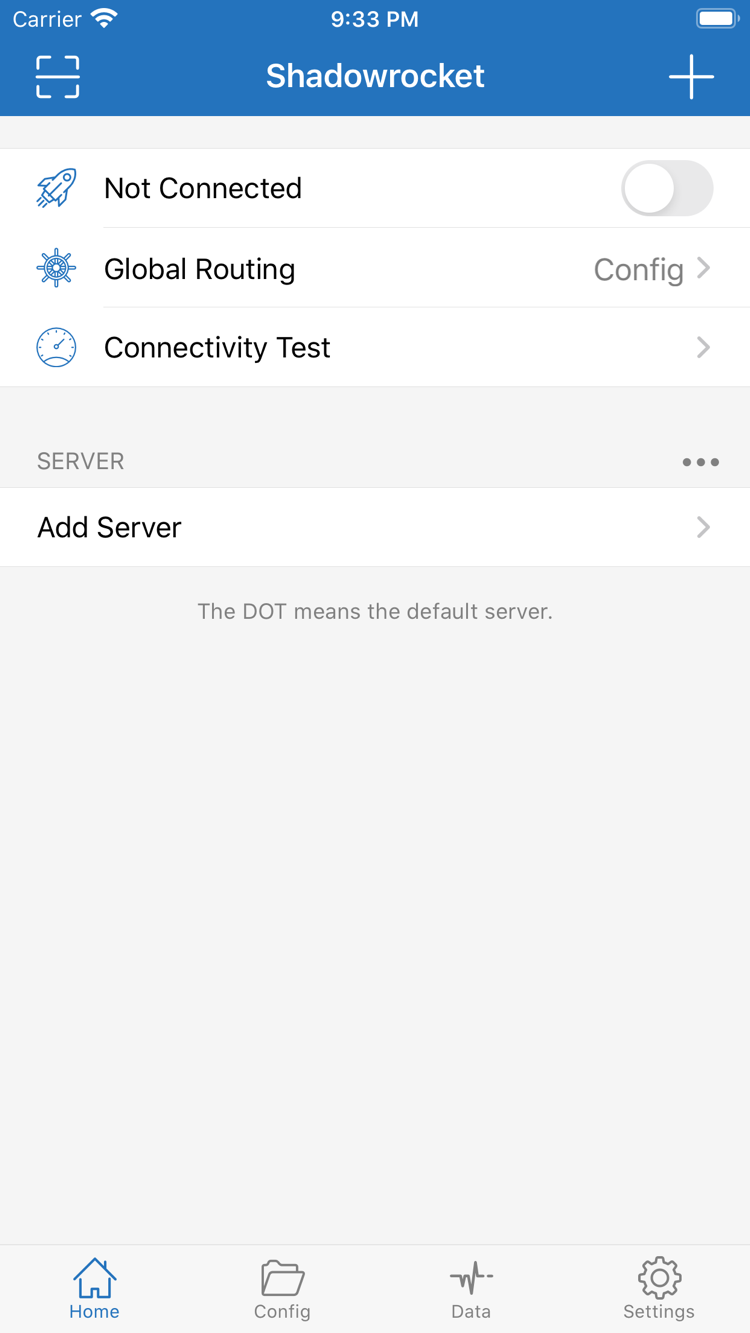
Rule-based routing: select Config, then check the order
In Global Routing, Config routes traffic according to the configuration, Proxy sends it through a proxy, and Direct connects without a proxy. To control where requests go, select Config first, then check which file is active under Config. Rules are evaluated from top to bottom; the policy for the first matching rule is applied. Specific domain rules generally belong before broader matches. DIRECT, PROXY, and REJECT are policy keywords, not indicators of connection quality. After making changes, test the same destination again to avoid mistaking a server issue for a rule issue.
Global RoutingConfig / Proxy / Direct
On Demand: Check triggers and use cases
On Demand starts connections when specified conditions are met. It’s useful when you want to reduce manual switching and your existing configuration is stable. First verify the server and rules with a manual connection, then check the On Demand settings in Settings and review the system VPN configuration and permissions. Once enabled, connection behavior is also affected by network changes and your chosen conditions; it does not mean the same connection will remain active at all times. If the connection comes back after you turn it off, check this setting first. To assess battery use, compare the same network and usage duration rather than relying only on the battery percentage.
SettingsOn Demand
Multiple protocols: Match Type to your server settings
Shadowrocket supports protocols including Shadowsocks, VMess, VLESS, and Trojan. Available options depend on the Type list in the app. Add a single server’s details with Add Server, or import the corresponding share link. After selecting a Type, check Host, Port, authentication details, and transport settings individually. The same protocol name does not mean the other parameters are interchangeable. If an import succeeds but the connection times out, check the field details against documentation for your own server instead of guessing from the protocol name. Before saving, make sure the copied text contains no extra spaces or line breaks.
Add ServerType / Host / Port
Subscribe: Importing and updating are separate steps
If you already have a subscription link, choose Subscribe from the add menu and enter the complete link. After saving, check that server entries appear. A subscription retrieves and updates entries; it is not a rule file in Config, and not every entry is necessarily reachable. To update, refresh manually and check the result first, then set automatic updates if you prefer. If it fails, check the link’s validity, the response format, and your current network in that order. Don’t share a full link that contains access credentials. After updating, verify the selected entry so you don’t keep using outdated information.
SubscribeHome
Config: Check the file contents and whether it’s active
Config stores rules and related settings, while subscriptions primarily manage server details. After importing a file, confirm which one is in use—not just that it appears in the list. Save a copy before editing, then review sections such as General, Rule, and Hosts before changing the relevant entries. If you use iCloud sync, check the sync scope, account, and whether the file actually reached the other device. Syncing doesn’t mean the file is enabled on that device, and it doesn’t replace the app’s purchase record. After switching files, check Config under Global Routing and test the destination that had the issue.
ConfigGeneral / Rule / Hosts
Diagnostic tools: Interpret tests in context
Connectivity Test can help check a connection, while Diagnostics in Settings can help investigate further. First confirm that the device’s underlying network works, then test the current entry and check the actual destination and its rule. Different tests mean different things; passing one test does not replace verifying that the destination loads. Data can help you observe traffic changes, but increased traffic alone doesn’t prove that a rule is correct. When documenting an issue, note the network type, Global Routing, and current Config. Hide subscription links, credentials, and private request content, then use the troubleshooting guide for your symptoms.
Connectivity TestDiagnostics / Data